

Creating & Sharing a Collection
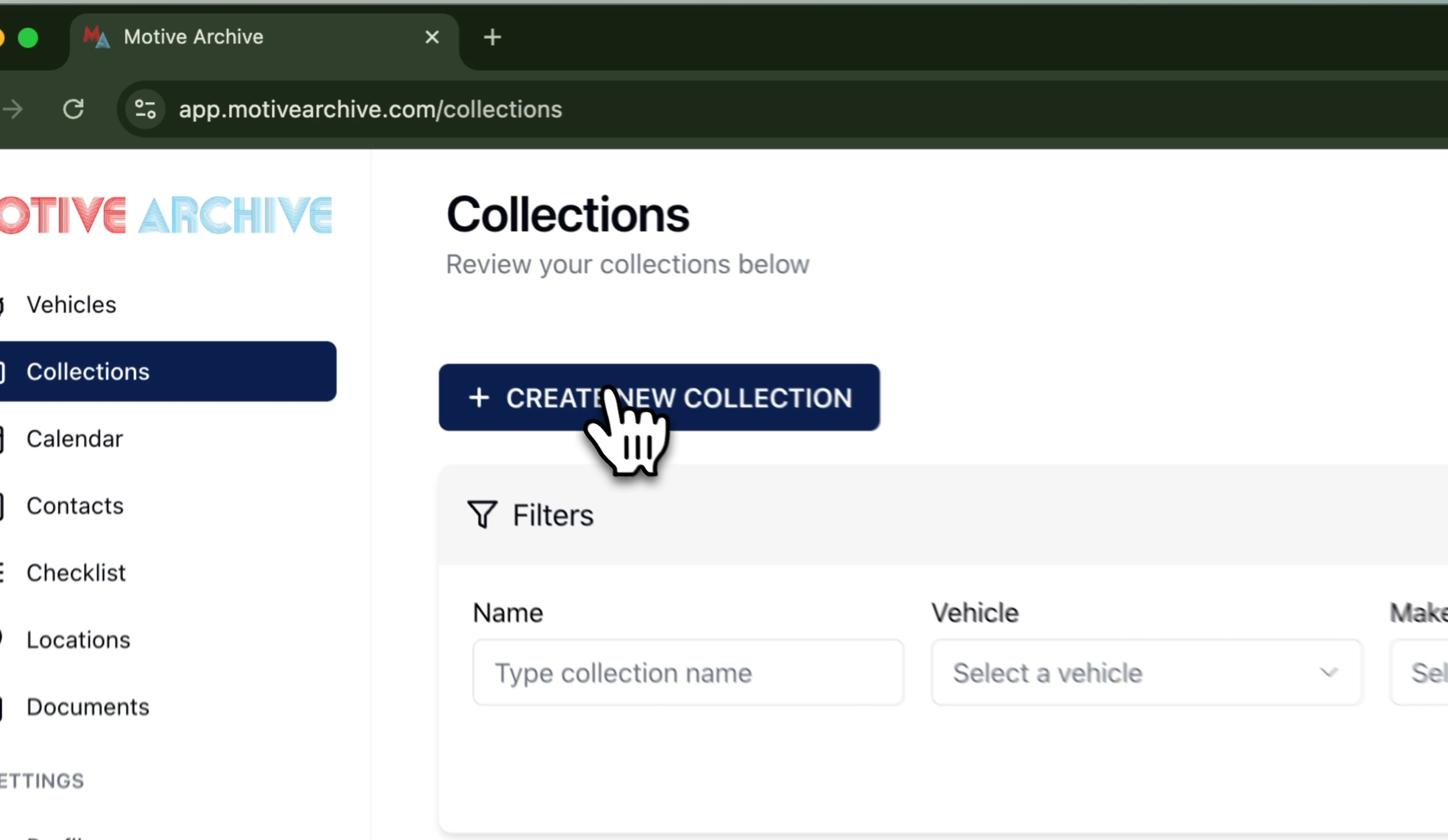
1. Open Collections and Create New Collection
Click the Collections tab, then select Create New Collection.
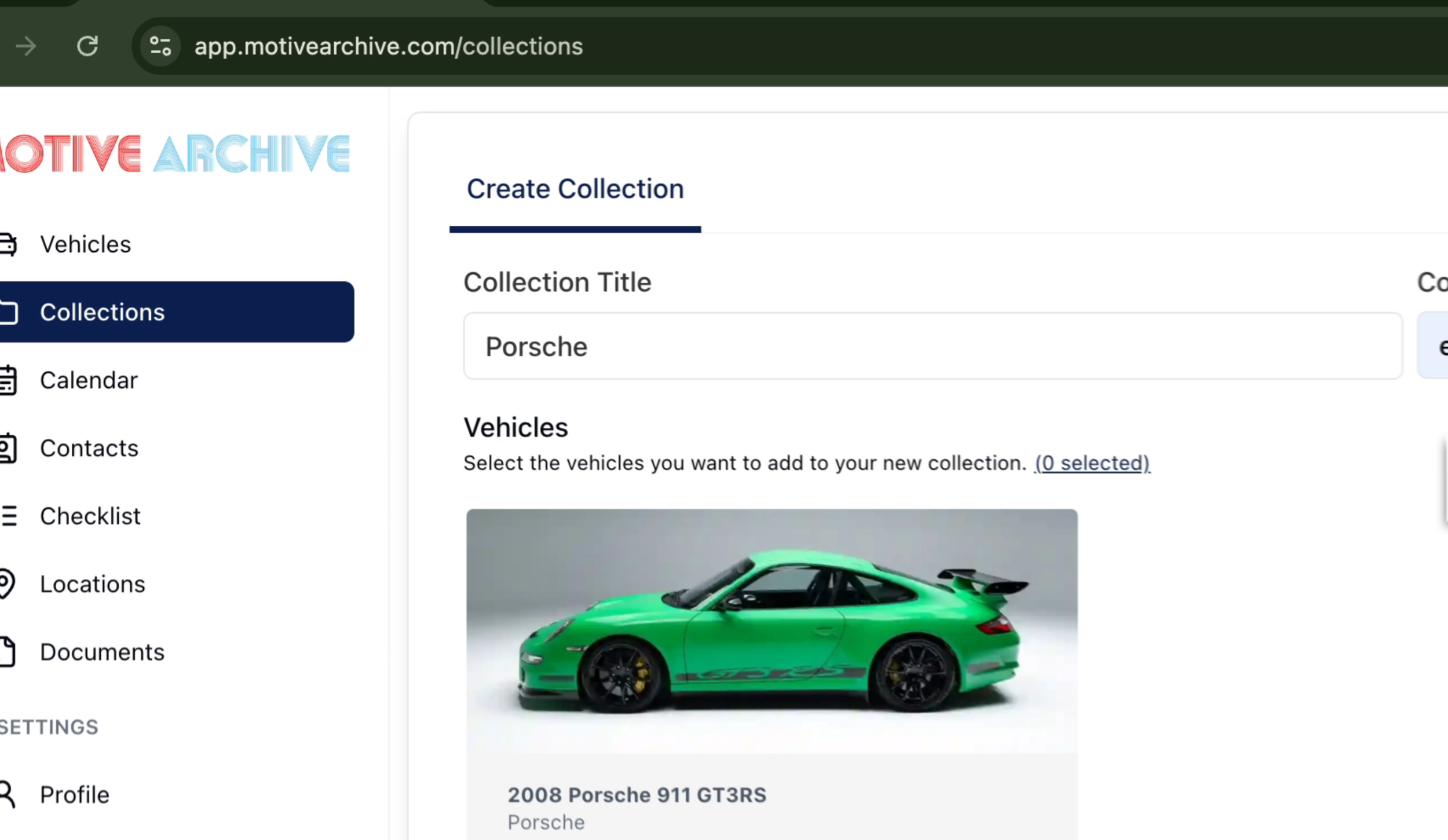
2. Add Title, Subtitle & Vehicles
Title: Name the collection.
Optional Subtitle adds more context.
Select one or multiple vehicles to include.
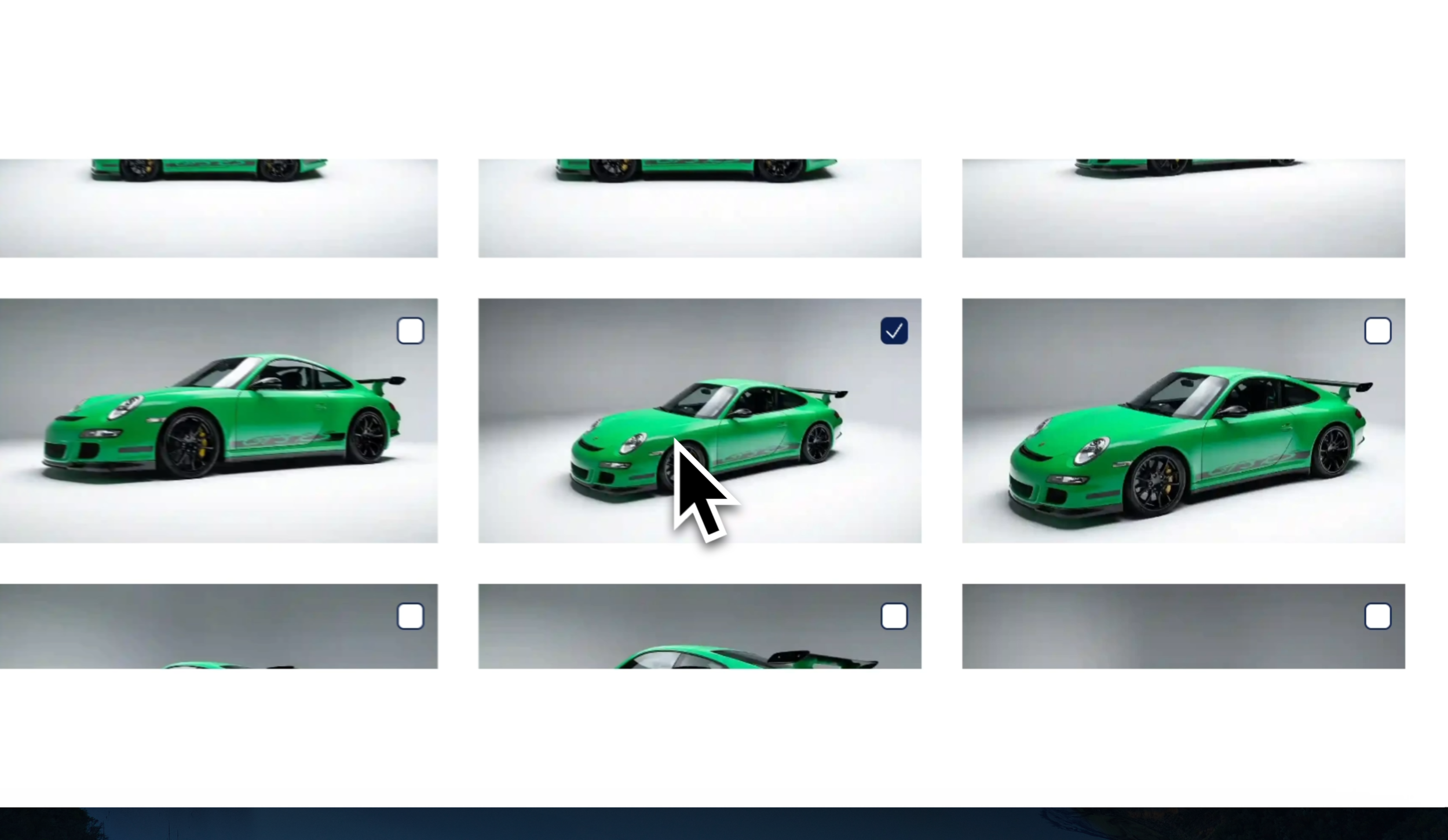
3. Choose Cover Image
Upload a cover image or pick one from your existing vehicle gallery.
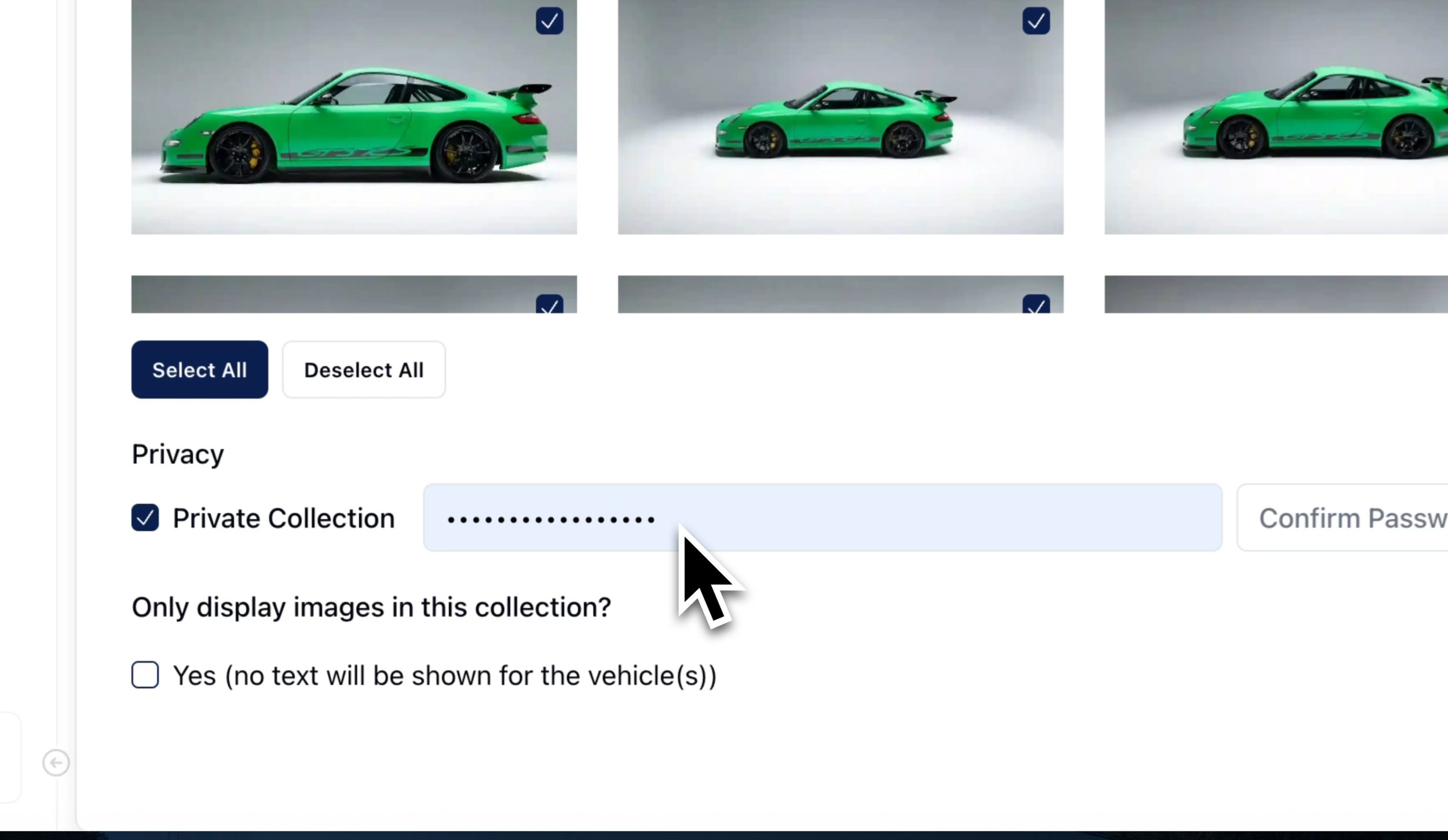
4. Select Display Photos & Privacy Options
Choose which photos viewers will see.
Enable Password Protect for extra security.
Toggle Images Only to hide documents & specs.
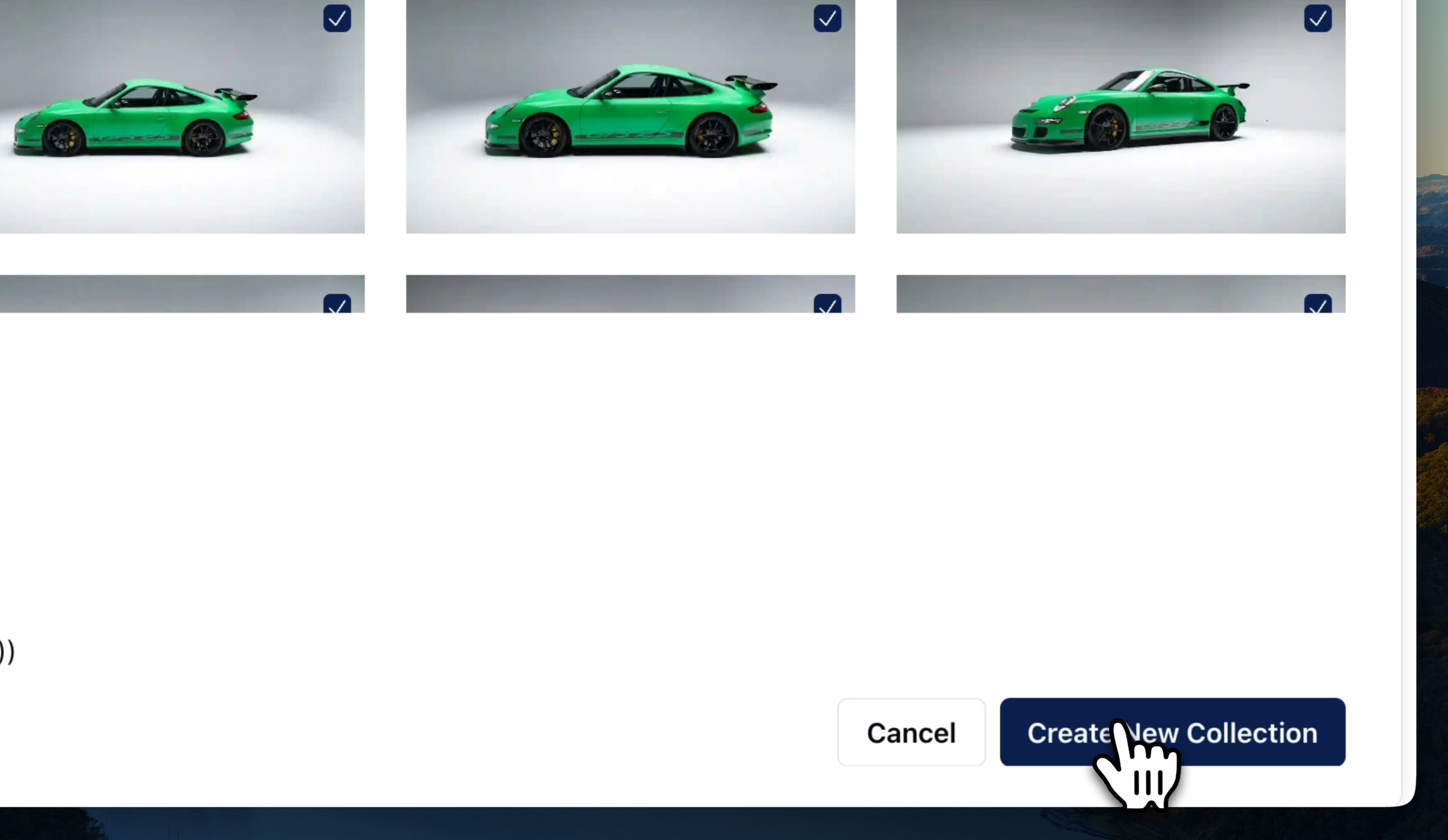
5. Create & Share the Collection
Click Create Collection to save.
Use the Share button to email recipients or copy the link manually.
For private links, set a password and (optionally) an expiration date.
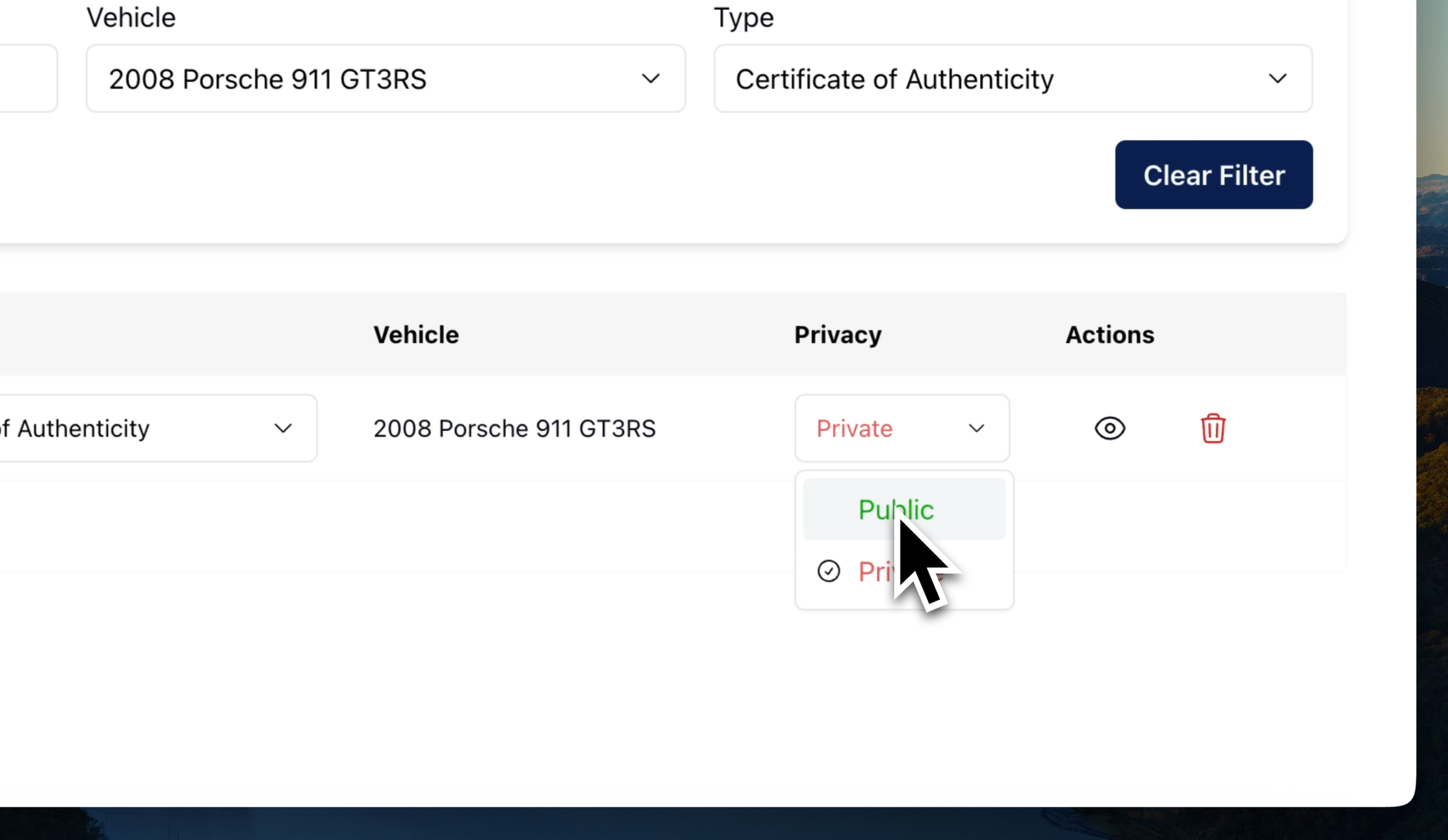
6. Include Public Documents
Navigate to the Documents tab.
Filter by vehicle and document type.
Set desired documents to Public.
Return to your collection—shared viewers will now see these docs.
Need more assistance?
Browse all our tutorials and documentation to get the most out of Motive Collection Manager.