

Using the Calendar
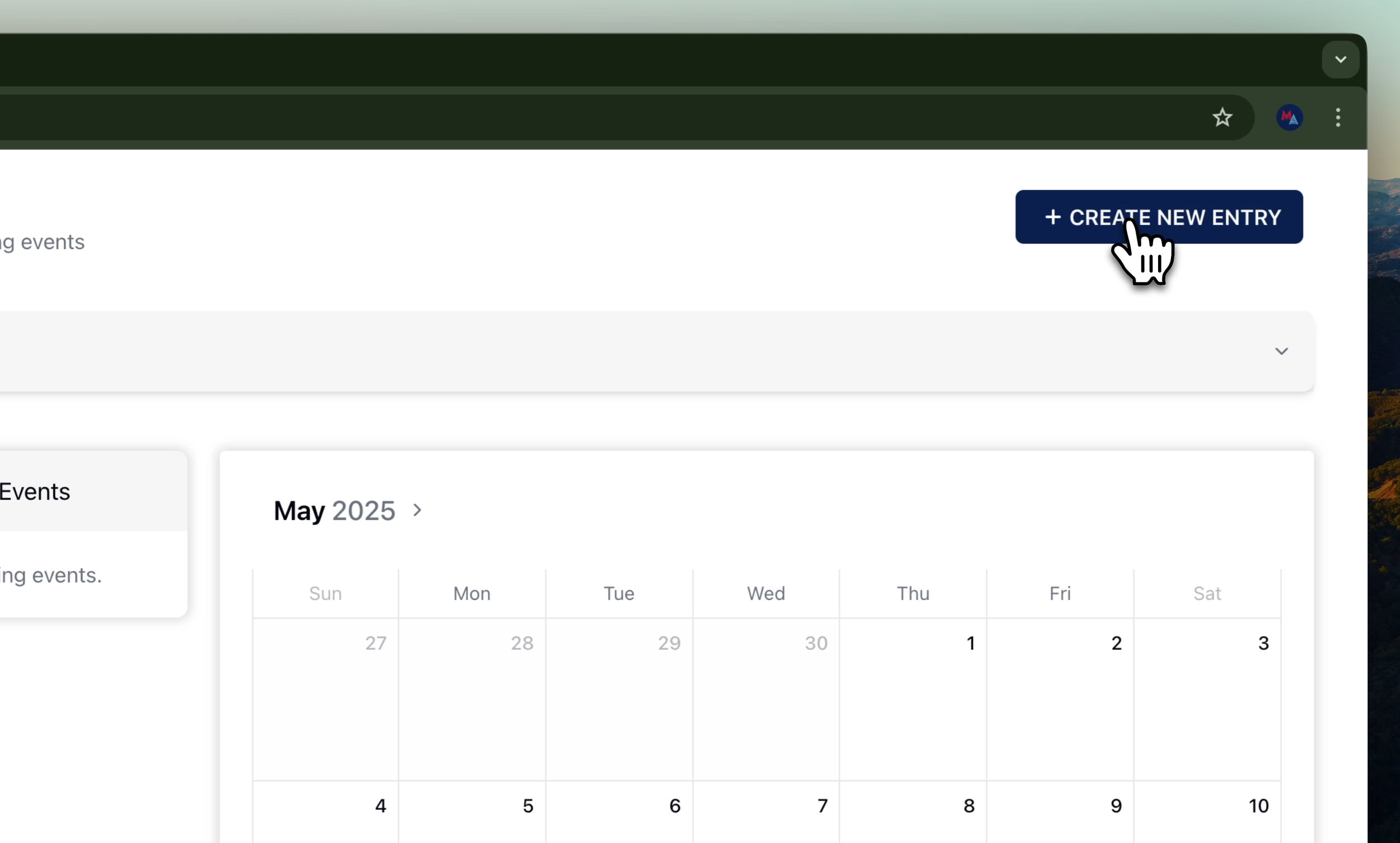
1. Open Calendar and Create New Entry
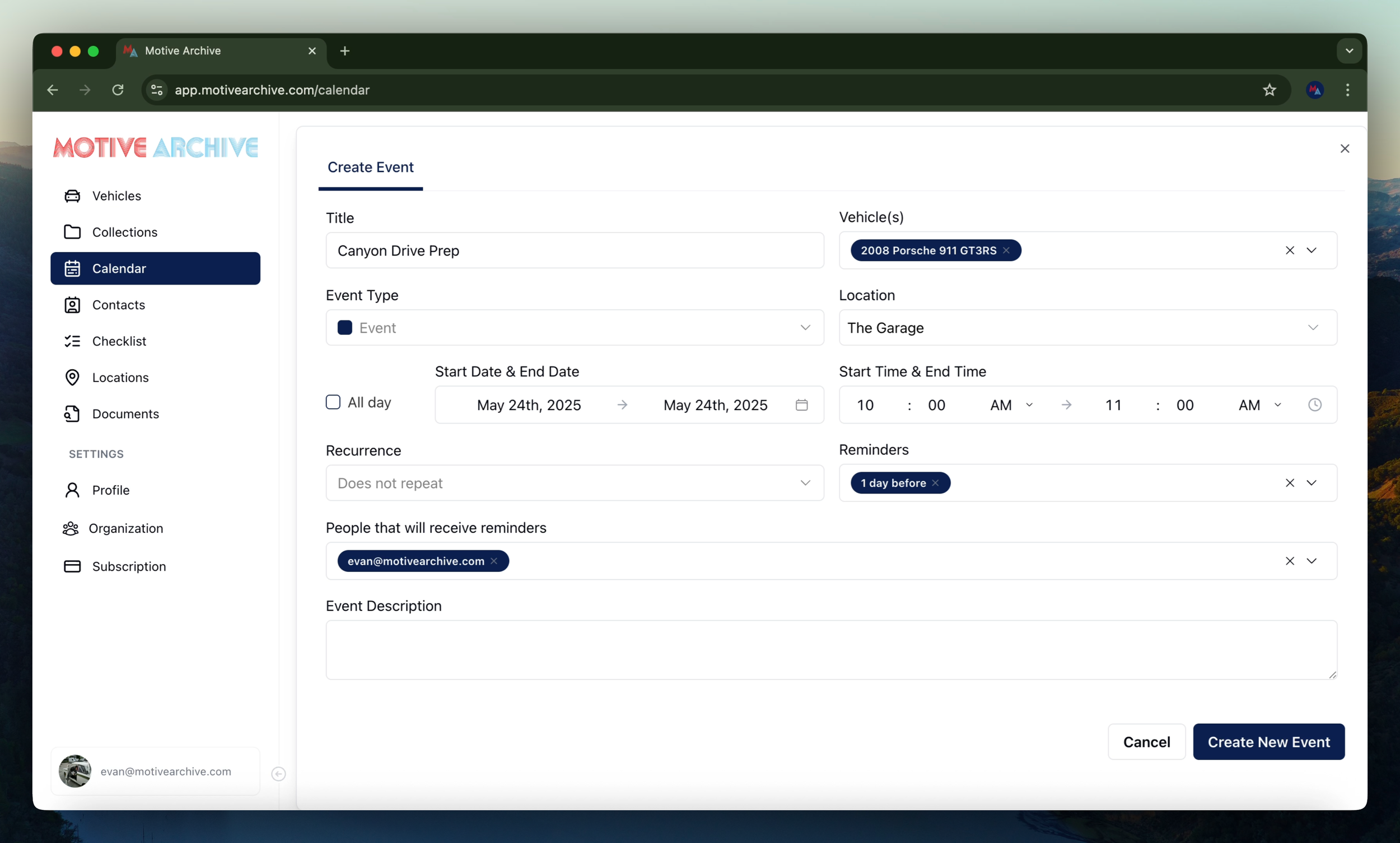
Click the Calendar tab on the left, then select Create New Entry.
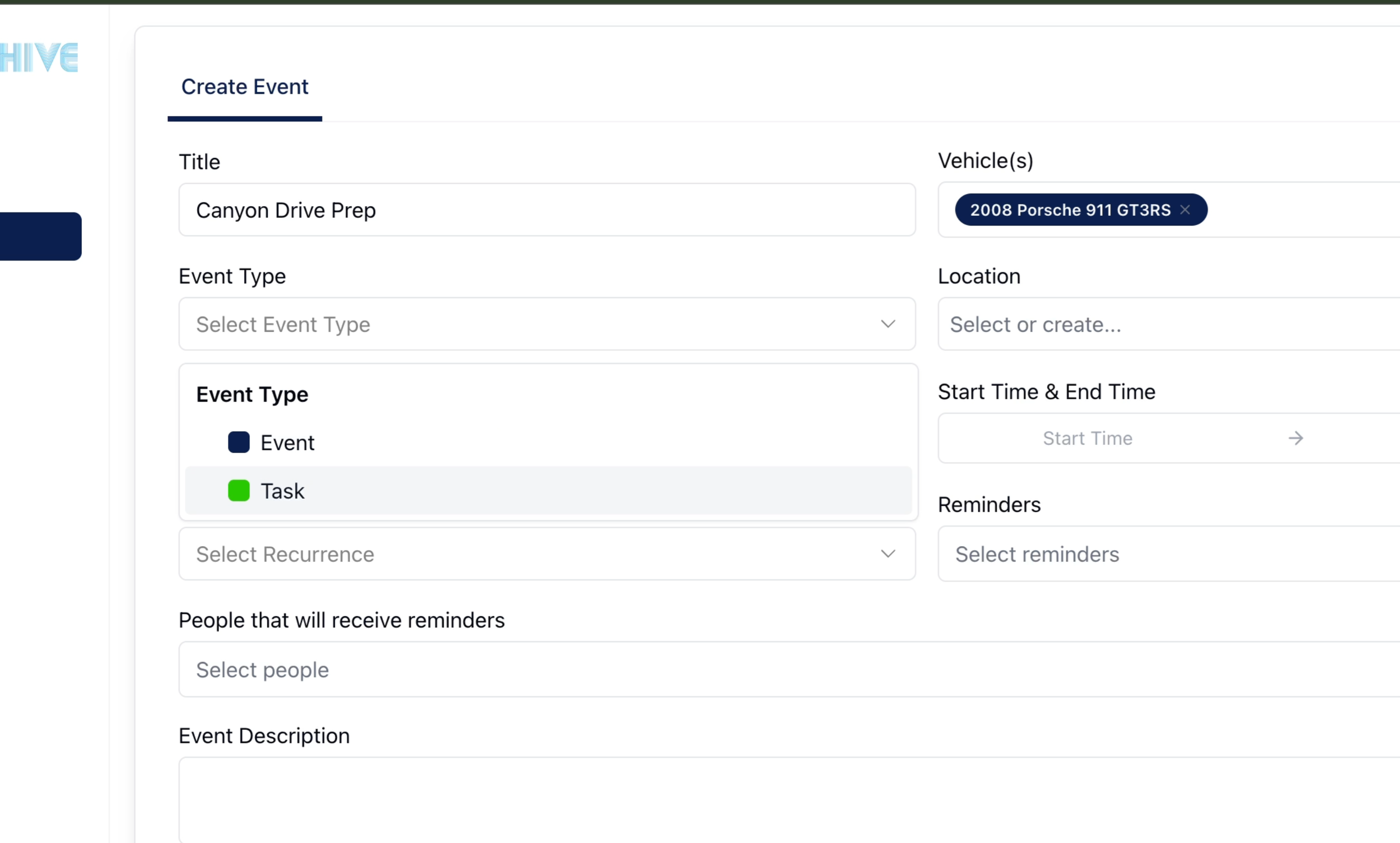
2. Enter Event Details
Title: Name your event (e.g., “Canyon Drive”).
Vehicle: Choose the car you'll be driving.
Type: Select Event or Task.
Location: Pick a stored location (add new ones under Locations).
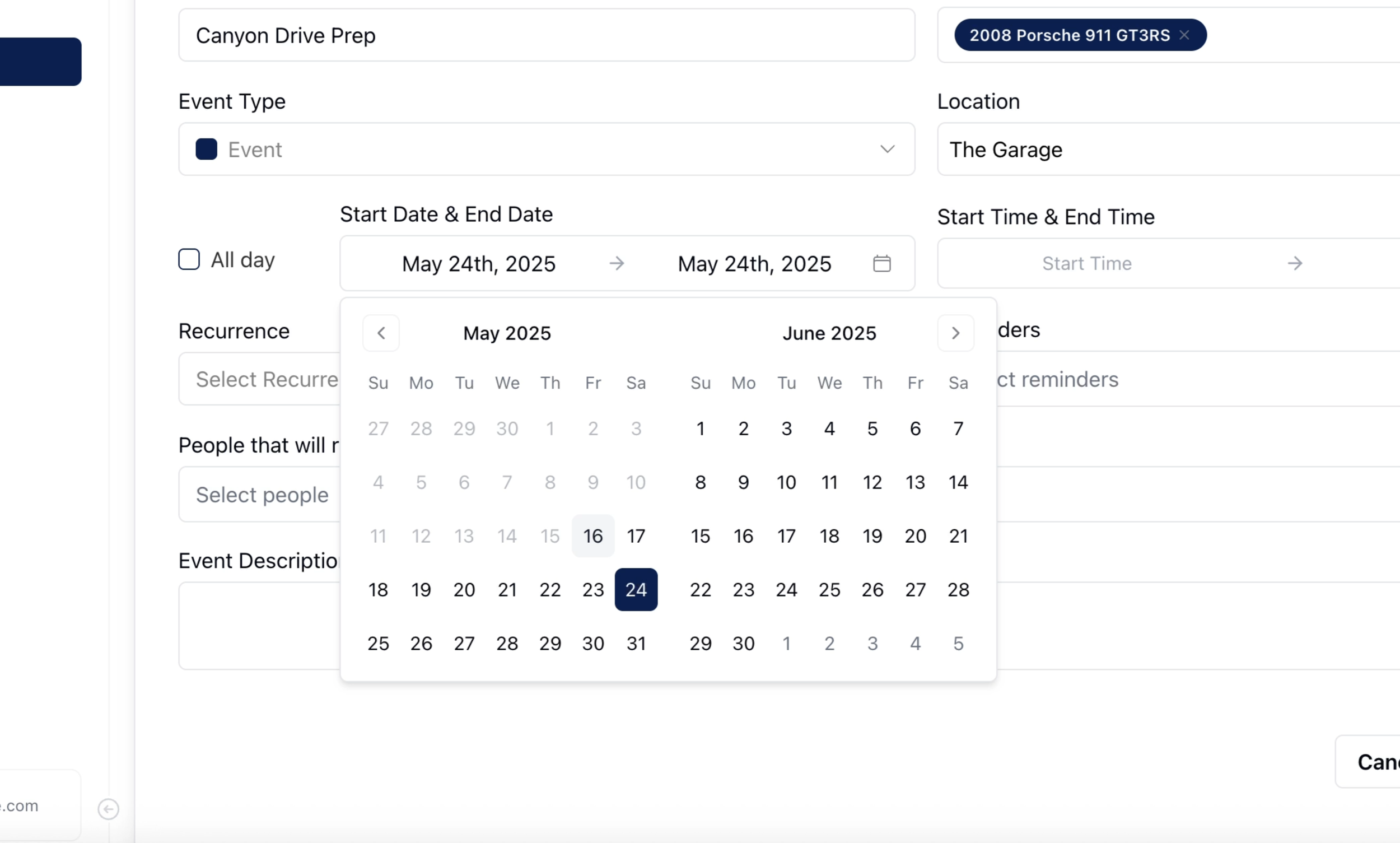
3. Set Date & Time
Toggle All‑Day or specify Start and End dates.
Choose the start time (e.g., 10:00 a.m.) and end time (e.g., 11:00 a.m.).
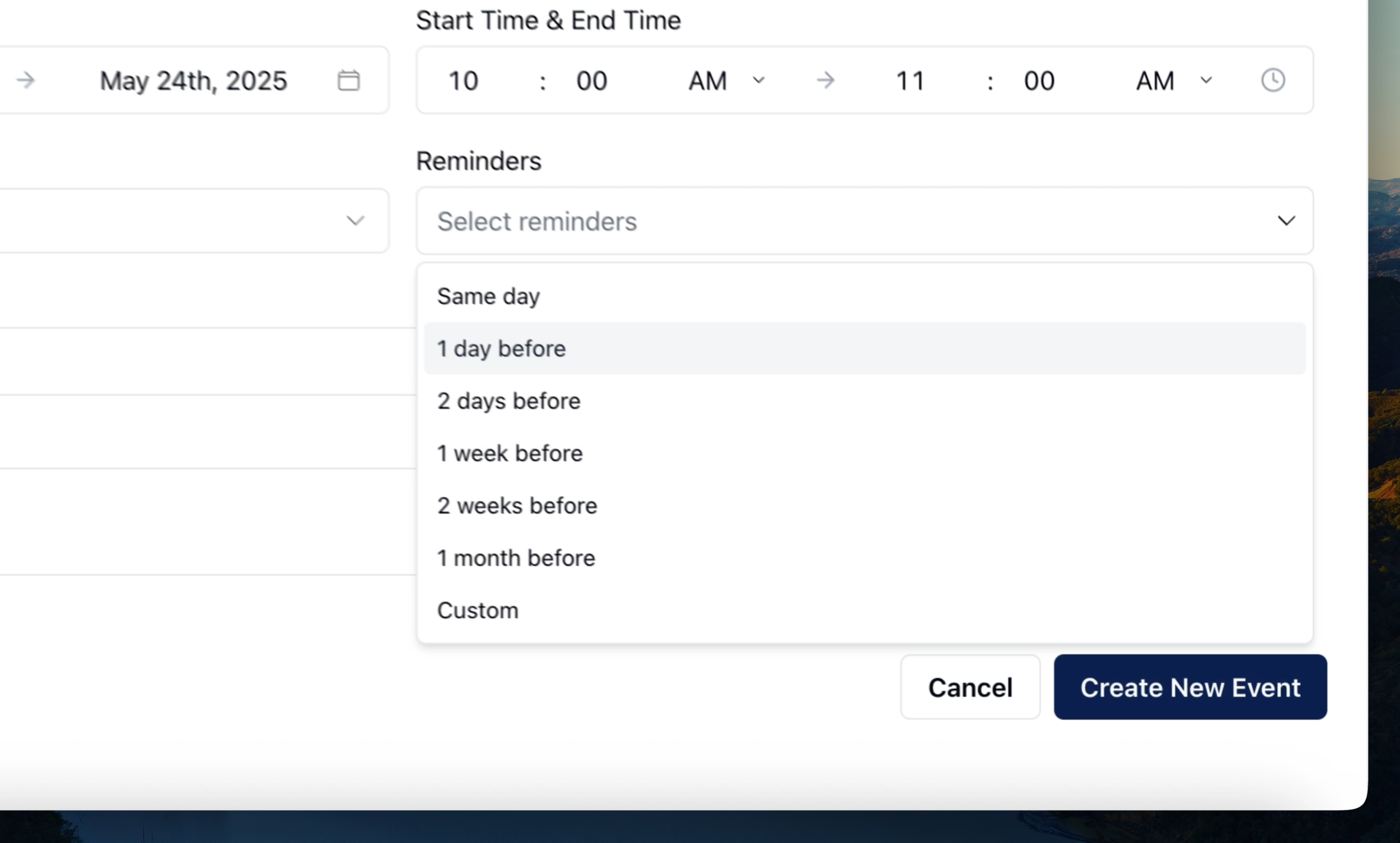
4. Add Recurrence & Reminders
Set up a recurring schedule if this event repeats.
Choose a reminder (e.g., "1 day before").
Enter the email address to receive the reminder.
5. Add a Description
Optionally add notes (e.g., route details, meetup point) to the Description field.
6. Save & View Your Event
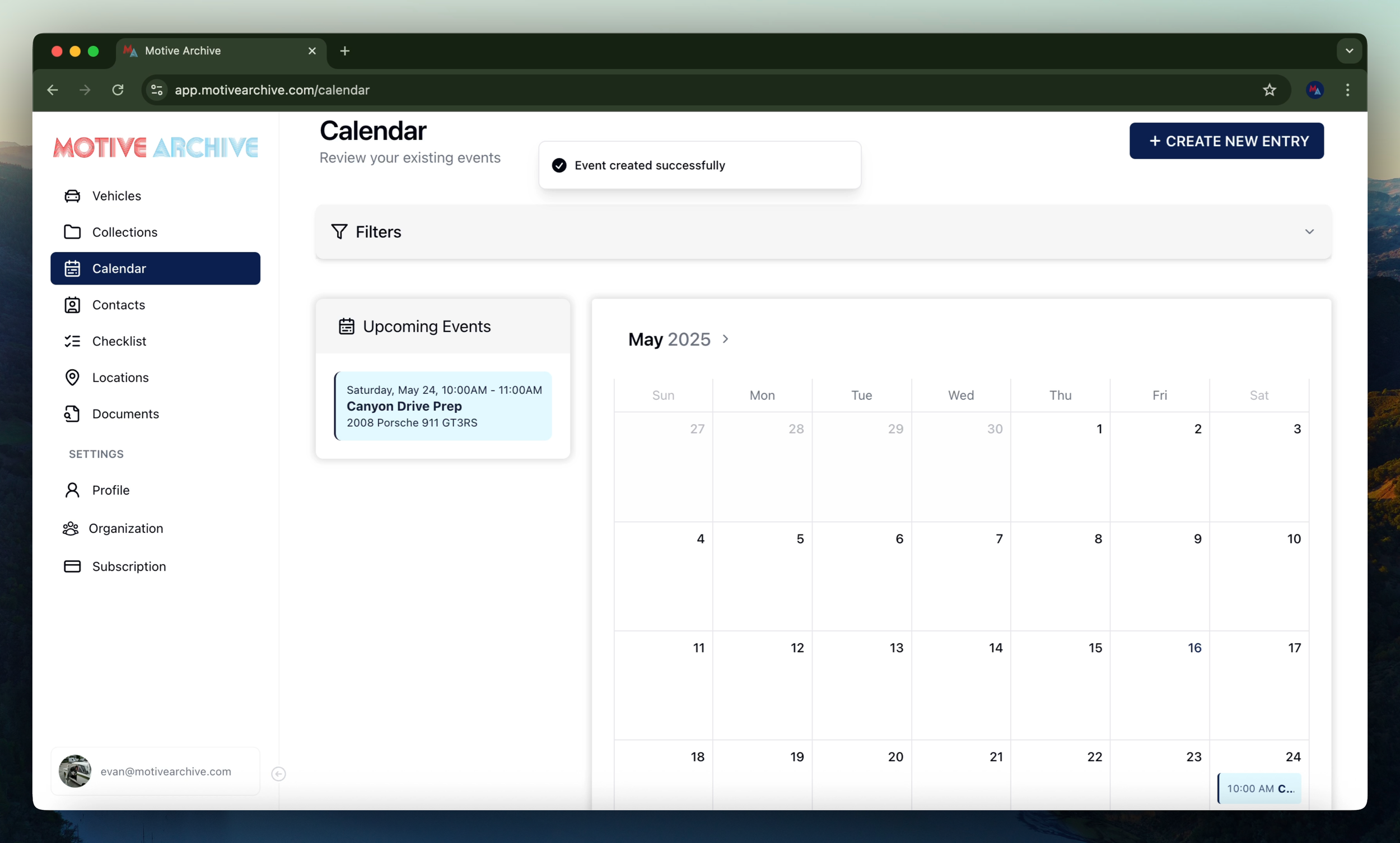
Click Create Event to save.
Confirm the event appears on your calendar.
Need more assistance?
Browse all our tutorials and documentation to get the most out of Motive Collection Manager.