

Adding a Vehicle
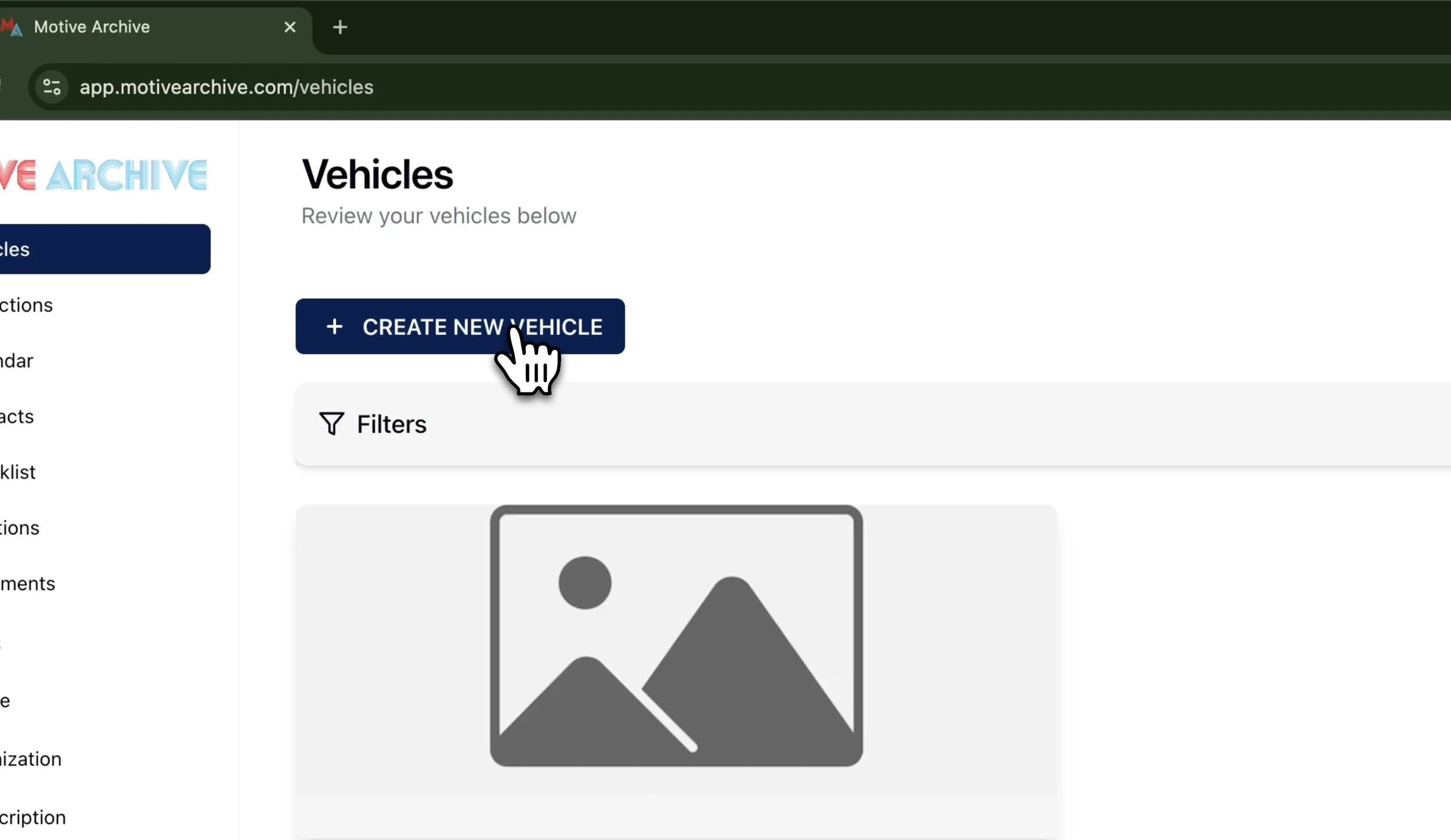
1. Create a New Vehicle
Click the “Create New Vehicle” button on the dashboard.
On the terms page, click “Proceed” to continue.
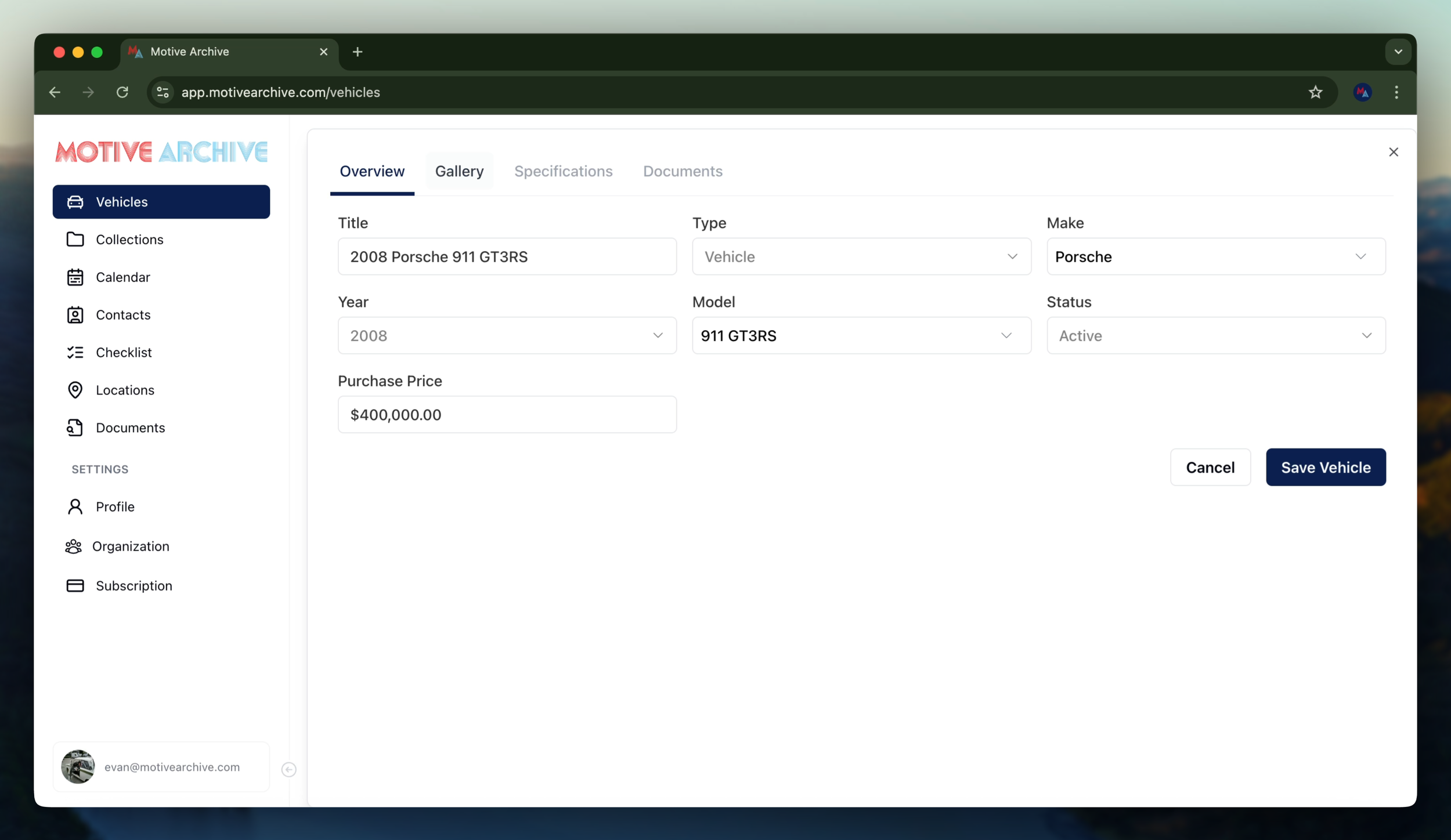
2. Enter Basic Vehicle Details
Title: Enter the name or title of the vehicle.
Type: Select the vehicle type from the dropdown menu.
If the make (e.g., Porsche) is not yet listed, you can manually add it.
Year: Choose the year of the vehicle.
Model: Enter the model name.
Status: Indicate whether the vehicle is currently Active or Sold.
Purchase Price: Enter the amount paid for the vehicle.
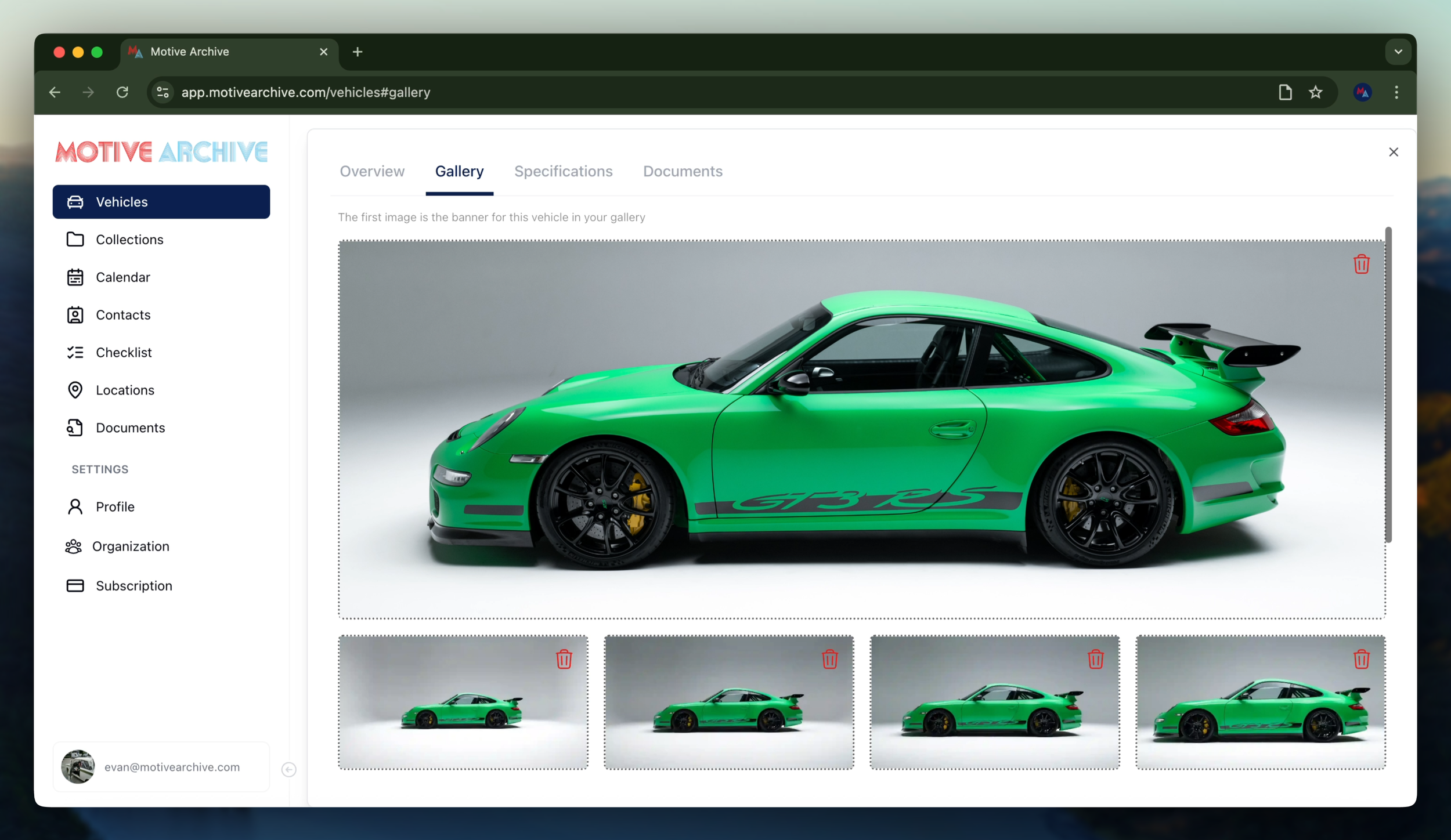
3. Upload Gallery Images
Navigate to the Gallery tab.
Drag and drop your photos to upload them.
After uploading, choose a Header Photo by clicking on your preferred image.
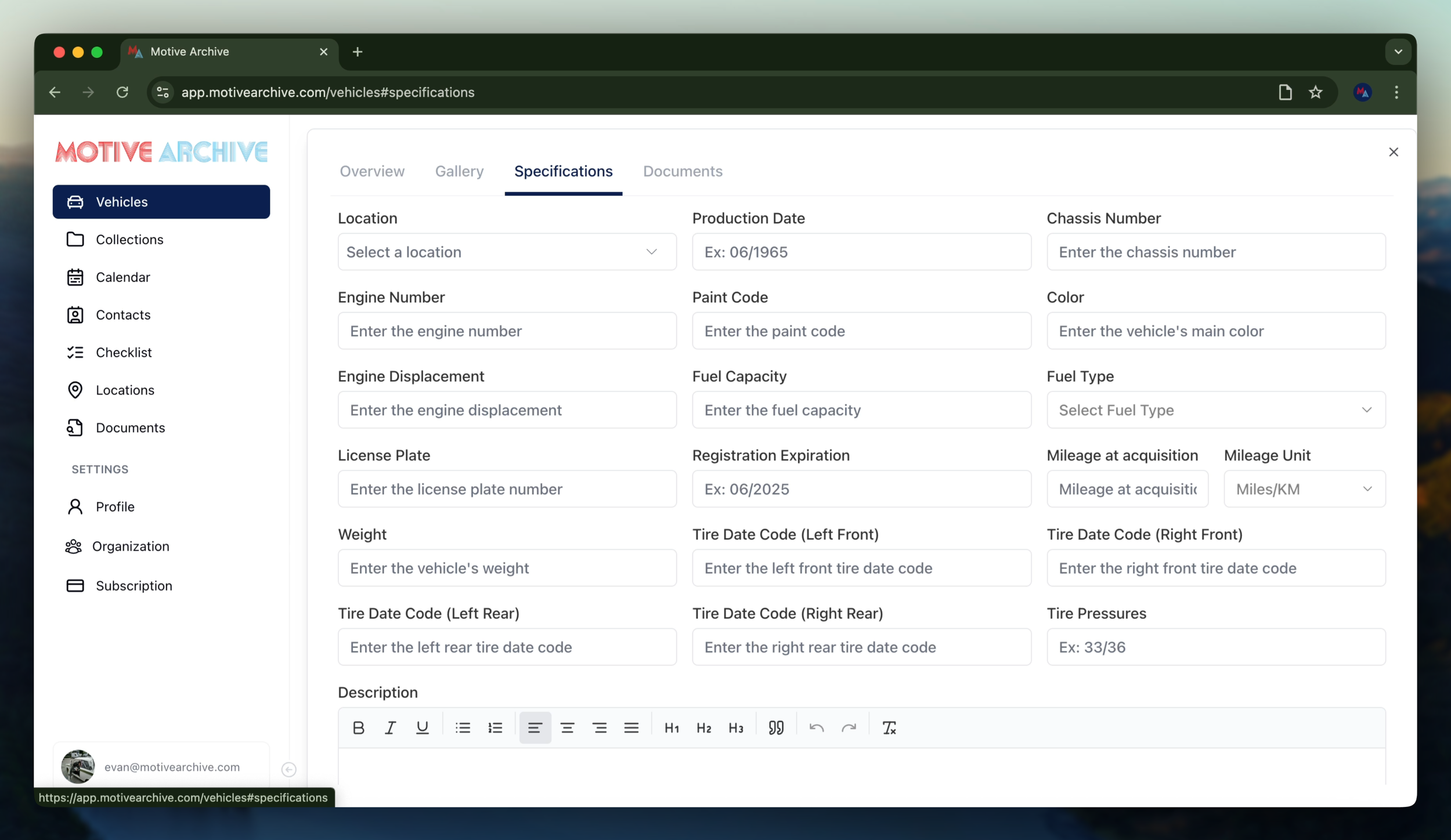
4. Enter Specifications
Go to the Specifications tab.
Fill in all relevant technical and descriptive information about the vehicle.
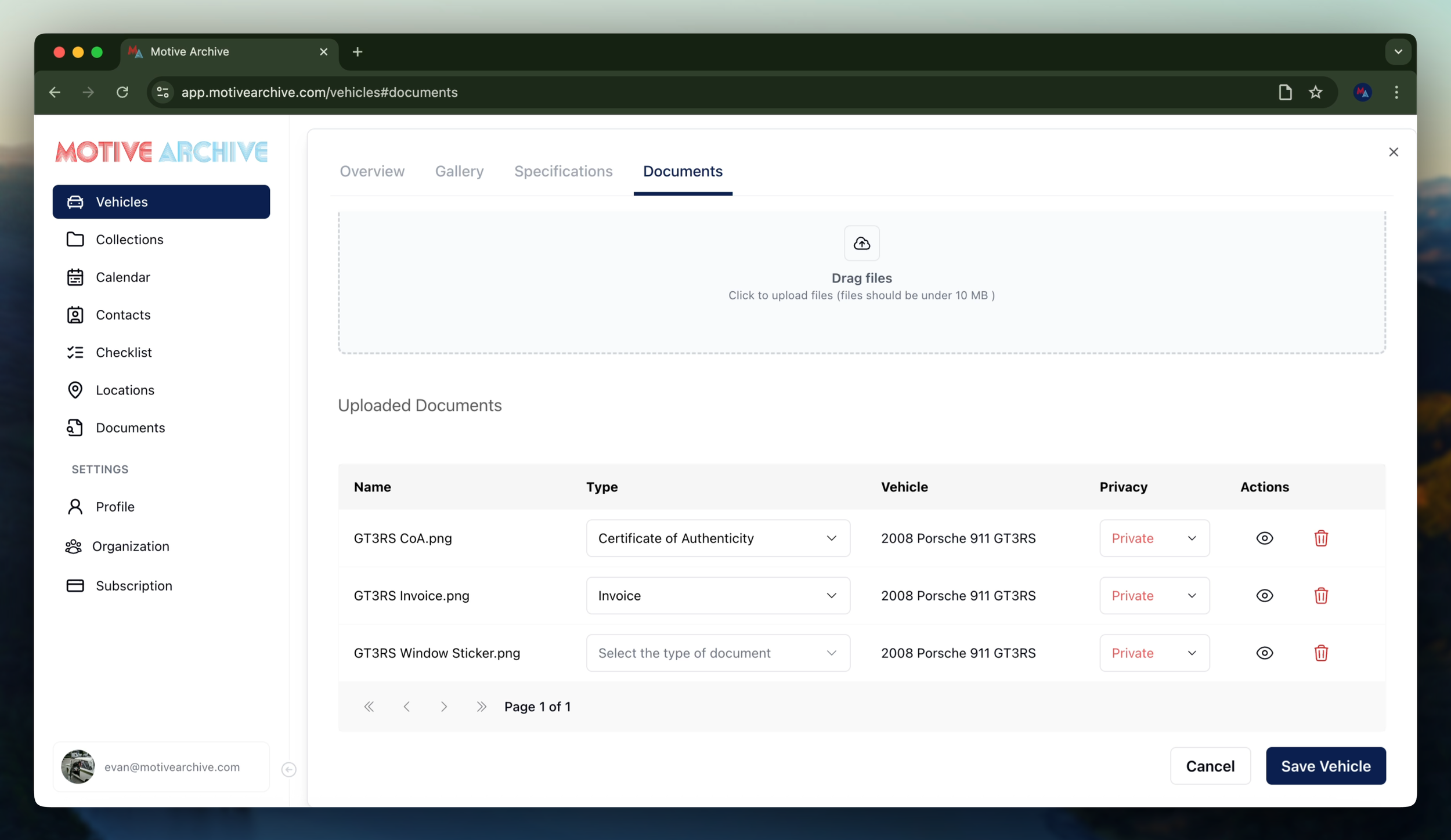
5. Upload Documentation
Open the Documents tab.
Upload any related files such as titles, receipts, or service records.
Once uploaded, assign a Document Type to each file for better organization.
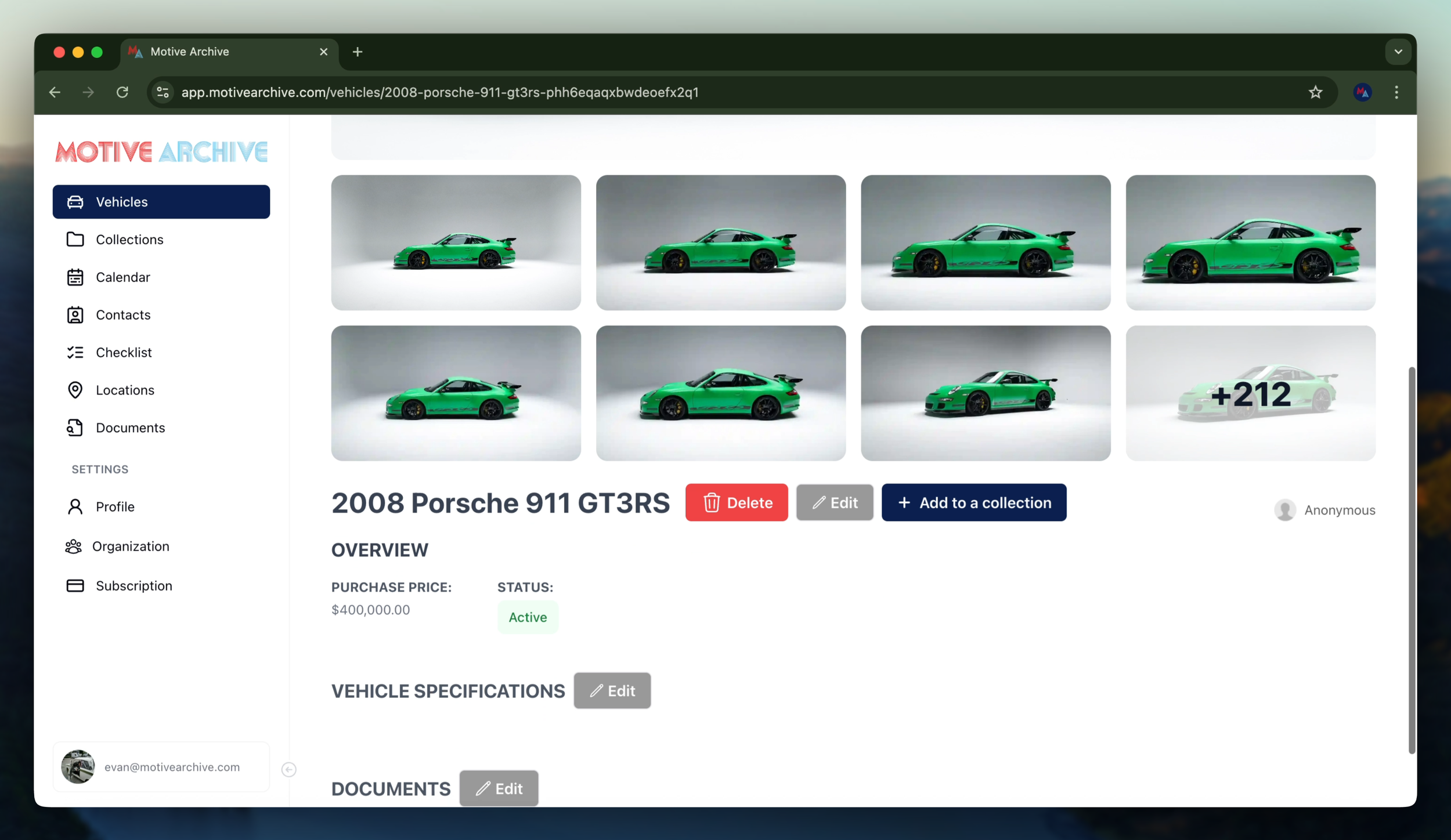
6. Save the Vehicle
When all sections are complete, click the “X” in the upper corner to close the modal.
Scroll down and click the “Save Vehicle” button to finalize the entry.
Need more assistance?
Browse all our tutorials and documentation to get the most out of Motive Collection Manager.